A practical walkthrough for connecting a Mystic BBS to a FidoNet-style (FTN) message network. Written for Mystic v1.12 Alpha 48 (released 15 January 2023, still listed as the latest stable build on the Mystic site and wiki).
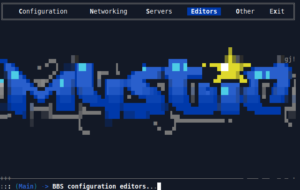
1. What you are setting up
An FTN network lets BBSes swap messages and files automatically over the internet. You will not be exchanging mail with everyone. You connect to one uplink (a hub), and the hub passes your mail along and sends you the mail for the echoes you subscribe to.
Key terms:
- Address – written zone:net/node (for example 21:1/105). Points add a fourth part (21:1/105.1). Think of it as your BBS’s phone number on that network.
- Domain – the short name of the network, kept lowercase (fsxnet, fidonet).
- Hub / uplink – the system you poll and that polls you. Your Network Coordinator (NC) or hub sysop assigns your address.
- Echomail – public conference messages shared across the network. Each conference is an echo, identified by an echotag (for example BBS_SCENE).
- Netmail – private point-to-point messages routed through the network.
- AreaFix – a robot at your hub. You send it a netmail with your AreaFix password in the subject and commands in the body to subscribe or unsubscribe echoes. FileFix does the same for file echoes.
- BinkP – the TCP/IP protocol used to move mail, normally on port 24554.
- Packets / bundles – the files that carry messages. Mystic can send raw packets or compressed bundles (ZIP is the usual choice).
- Nodelist – the directory of every system on the network, used for netmail lookups and routing.
How the pieces fit together in Mystic
Mystic splits the work into three programs. Knowing which does what makes troubleshooting much easier.
- MIS (Mystic Internet Server) – runs 24/7. It hosts your BinkP server (so your hub can deliver mail to you), runs the Events scheduler, and, since A47, provides MIS POLL, which dials out to your hub.
- MUTIL – the maintenance utility, driven by .ini files. It imports (tosses) inbound packets into your message bases and exports (scans) new local messages into outbound packets.
- MYSTIC -CFG – the configuration program where you define addresses, nodes, message bases, servers and events.
Important for A48: older guides and videos mention a program called FIDOPOLL. It was retired after A46 and replaced by MIS POLL in A47. If a tutorial tells you to run fidopoll, run mis poll instead.
2. Before you start
You will need:
- A working Mystic 1.12 A48 install that you can log into locally and open with
mystic -cfg. Follow the Installing Mystic BBS section of the Mystic wiki (wiki.mysticbbs.com) if you have not done this yet. Avoid the developmental builds while you are learning; they trade stability for new features. - A public hostname or static/dynamic DNS name for your system, and the ability to forward TCP port 24554 (and optionally 24553 for SSL) to the machine running MIS.
- An accurate system clock. Mail packets carry timestamps and bad clocks cause confusing results.
- The ability to keep MIS running around the clock.
3. Choose a network and get your connection details
Pick the network you intend to join and read its policy first. Two common choices:
fsxNet is an open, relaxed network in Zone 21 that is popular with Mystic sysops. It has five nets, each served by a hub. According to the network’s site, the Risa hub (21:1/100) accepts BinkP on net1.fsxnet.nz port 24554. Other hubs use their own hostnames and ports, and some offer an SSL port (24553), so use the details published for the hub that serves your net. Ask the network coordinator for a node number.
FidoNet is the original network. It is run under a formal policy with regions, nets and network coordinators. Find the coordinator for your area in the current nodelist, follow the application process in the FidoNet policy, and expect it to take time. Until you are assigned a number, some tools use a temporary node address in the form zone:net/9999; do not treat that as permanent.
Whichever network you choose, collect these from your hub or coordinator:
- Your assigned address (zone:net/node) and the network domain
- Your hub’s address, sysop name, hostname and BinkP port
- The session password (used for BinkP authentication)
- Your AreaFix password (and FileFix password if you will carry file echoes)
- Whether the hub requires a packet (PKT) password or TIC password (many do not)
- The network’s echo list and any zone-specific rules
- The network’s nodelist location
Keep the passwords somewhere safe. Never post them in echomail or netmail.
4. Configure your network address
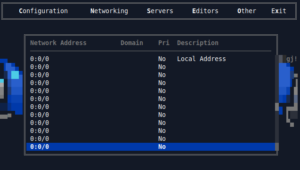
In mystic -cfg, go to the Configuration menu and open Echomail Addresses.
Mystic supports up to 29 addresses, so you can join up to 29 networks at once. The first entry is for local (non-networked) bases; leave it alone and use the second entry or later.
Fill in:
- Zone, Net, Node, Point – your assigned address (point is usually 0 or blank)
- Domain – lowercase network name, for example fsxnet
- Description – a label such as fsxNet
- Primary – set to Yes for your main address (only one can be primary)
If you do not set a primary address, Mystic will assign one automatically when you enter addresses. Check that it picked the one you intended.
5. Confirm your paths
Open System Configuration and check the Paths section. Know where these live, because you will look in them when debugging:
- Semaphore Path – Mystic drops empty flag files here when mail arrives or is created. Events can watch for them.
- Inbound EchoMail – where packets from known nodes arrive
- Inbound Unsecured – where packets from unknown nodes arrive
- Outbound Primary – where outbound packets and bundles are staged
The default layout puts these under your Mystic directory (echomail/in, echomail/in/unsecure, echomail/out). The semaphore directory must exist, or MUTIL will refuse to run.
6. Create a message group (recommended)
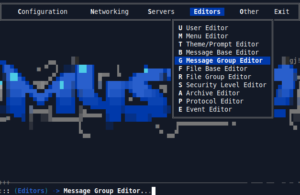
Open the Message Group Editor and add a group for the network (for example “fsxNet”). Groups let you apply access rules to every base from that network at once, and the group number is used in ACS strings (a group-1 base uses g1 in its ACS). It also keeps your message area list tidy for users.
7. Add your hub as an Echomail Node
This is the most important step. In Configuration > Echomail Nodes, press I (or use the / command menu) to insert a node. Enter the hub’s details across the node’s pages.
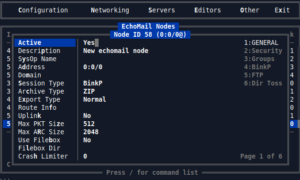
Page 1: General
- Active – Yes. Inactive nodes are ignored by Mystic, MIS POLL and MUTIL.
- Description and SysOp Name – for your reference
- Address and Domain – your hub’s address and the network domain
- Session Type – BinkP
- Archive Type – ZIP is the usual choice. Leave it blank to send raw .PKT files.
- Export Type – controls how outbound mail is treated. Crash sends as soon as possible. Hold waits for the other side to collect it. Normal is regular priority. Direct prevents routing elsewhere. A hub you poll is typically set to Crash, which is what the Mystic wiki example uses for the fsxNet hub.
- Route Info – which netmail destinations to route through this node. For a single-zone network such as fsxNet, use the zone wildcard (21:). For FidoNet, route zones 1 to 5 through your uplink (1: 2:* 3:* 4:* 5:*).
- Max PKT Size / Max ARC Size – the wiki example uses 512 KB packets and 2048 KB bundles. Set 0 for no limit.
- Use Filebox – only if you will receive files through the hub. When Mystic offers to create the filebox directory, enter the address and domain first and then accept.
How Mystic routes netmail: it first looks for an exact match against your configured nodes, and only if there is none does it walk the Route Info of each node from the top of the list.
Page 2: Security
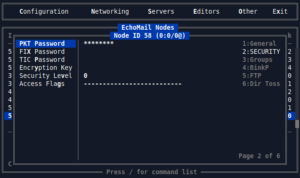
- PKT Password – optional. If set, MUTIL will only toss packets from this node that carry the matching password. Leave blank unless your hub requires one; the session password is normally enough.
- FIX Password – used to authenticate AreaFix/FileFix netmail coming from this node. Setting it also makes the node-list shortcut commands (Send AreaFix, Send FileFix) work smoothly. Fill it in with the AreaFix password your hub assigned you.
- TIC Password – the password checked against .TIC files from this node. Without it, tossed files from the node may be rejected or moved to your bad-file directory.
- Encryption Key – optional AES-256 encryption of netmail contents between two Mystic systems; both sides must share the key and you need Cryptlib installed. Skip it unless your hub asks for it.
- Security Level, Access Flags – node-level access control, mainly useful if you later act as a hub.
Page 3: Groups
Place the node in the echomail group that matches the network (the same group you created in section 6).
Page 4: BinkP
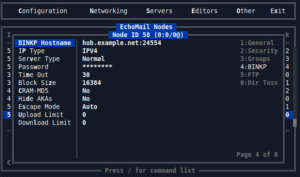
- BINKP Hostname – the hub’s DNS name, with the port if it is not 24554 (for example net1.fsxnet.nz or hub.example.net:24560)
- IP Type – IPv4, IPv6, or a preferred/fallback pair
- Password – your session password. It is case sensitive, and the Mystic wiki warns that some non-Mystic systems handle long or mixed-case passwords badly; if you have a choice, keep it uppercase and eight characters or fewer.
- Time Out / Block Size – leave at defaults
- CRAM-MD5 – Yes, so the password is not sent in plain text
- SSL/TLS – leave off at first. Turn it on only after a working plain session, and only if the hub supports it. Mystic’s SSL support depends on Cryptlib and on the hub offering an SSL port.
- Hide AKAs – controls whether you reveal all your network addresses during the handshake or just the one that matches the zone
In A48, labels on this page can differ slightly from older screenshots (for example a Server Type option and a Passive setting have appeared). Read the on-screen help for each field.
Pages 5 (FTP) and 6 (Dir Toss) are only needed if the hub uses FTP or directory-based exchange.
8. Configure the BinkP server
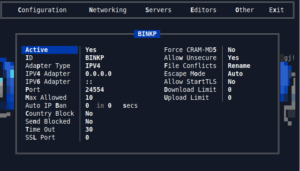
Your hub may deliver mail to you, not just wait for you to poll. In Configuration > Servers:
- Open the BinkP server and set it to Active.
- Keep the Port at 24554 (change it only if your hub expects something else).
- Optionally set an SSL Port (24553 is the recommended value) if you want TLS connections; this requires Cryptlib. Setting the port to 0 disables the SSL listener.
- Forward the port through your router/firewall to the machine running MIS.
Start MIS and leave it running. In Linux, MIS can bind low ports as root and then drop privileges to the user that owns the executable.
9. Create your message bases
You need one netmail base and one base per echo you want to carry.
Netmail base
In the Message Base Editor, create a base with network type Netmail, assign your network address (AKA) for that network, and use the JAM format. Netmail bases do not need to be linked to a node for export to work.
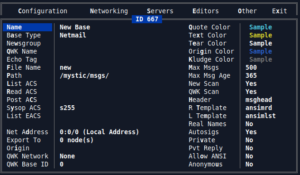
Echo bases
You have three choices:
- Let MUTIL auto-create them (the default). When an echomail message arrives for an echo you do not yet have, MUTIL creates the base using defaults you set in the ImportEchoMail section of your mutil ini. You can set separate defaults per sender address, which is handy when you have several networks.
- Import the network’s area list. If your network publishes a FIDONET.NA style list, MUTIL’s Import_FIDONET.NA function can create the bases in bulk.
- Create them manually in the Message Base Editor: type Echomail, network address set to your AKA for that network, and the echotag matching the network’s name for the echo exactly.
To make Mystic send your users’ posts out, link each echo base to your hub: in the Echomail Nodes list, press / and choose Echomail Exports, then mark the bases that belong to that node. Bases that auto-create during import are normally linked automatically to the node that sent them.
10. Set up MUTIL
Create small purpose-built .ini files rather than one giant file. A common convention is mailin.ini and mailout.ini. The minimum is a [General] section that enables the task, plus the matching stanza. Start from the stock mutil.ini in your Mystic directory, which is documented in the wiki.
mailin.ini (tosses incoming mail)
[General]
ImportEchoMail = true
logfile = mutil.log
loglevel = 2

[ImportEchoMail]
dupe_db_size = 32000
dupe_circular = true
unsecure_dir = true
strip_seenby = false
default_rescan = R=250
auto_create = true
lowercase_filename = true
acs_list =
acs_read =
acs_post =
acs_sysop = s255
max_msgs = 500
max_msgs_age = 365
new_scan = 1
qwk_scan = 1
Notes on the options:
- auto_create – creates bases for new echoes automatically.
- unsecure_dir – whether to also toss packets from unknown senders. The stock A48 file ships with it set to true; many sysops set it to false so only configured nodes are accepted.
- strip_seenby – keep this false. Never enable it if you are or plan to become a hub.
- dupe_db_size – number of message IDs remembered (max 250,000).
- default_rescan – what a full %RESCAN request sends. The default is the last 250 messages per base.
- Per-address defaults use the address as a prefix, for example
21:1/100_acs_post = s20g1. - Optional: dupe_msg_index (save dupes/bad messages to a base for inspection), bad_packet (a folder for packets that cannot be imported), forward (remap netmail names) and twit (filter unwanted senders).
mailout.ini (scans outgoing messages)
[General]
ExportEchoMail = true
logfile = mutil.log

[ExportEchoMail]
skip_online = true
skip_online avoids exporting while users are logged in, which can prevent collisions with someone mid-post. Be aware this has caught out sysops whose outgoing mail appeared stuck because they exported while users were online; check your log if mail is not leaving.
nodelist.ini (optional, but useful)
[General]
MergeNodeLists = true
logfile = mutil.log

[MergeNodeLists]
strip_down = true
strip_private = true
nodefile = /home/mystic/nodelists/fsxnet
nodefile = /home/mystic/nodelists/nodelist
Each nodefile line gives the full path and base name of one network’s nodelist. MUTIL picks the newest numbered copy (fsxnet.### and so on), merges them and writes the result into your DATA directory so users and routing can look up addresses. If no nodelist is found, the existing one is not overwritten.
File echoes (only if you carry them)
The [FileToss] stanza processes .TIC files, files them into your file bases (auto-creating if you allow it), checks size and CRC, and passes them on to any downlinks. Set a bad_dir for rejected files, and make sure the node’s TIC password is configured. You can skip this entirely until you want files.
11. Automate with Events
In Configuration > Event Editor, create events so everything happens without you. Use semaphore events for reactions and an interval event for polling. Use full paths in the Shell field if your system needs them.
- Toss incoming mail – Event Type Semaphore, semaphore names
echomail.inandnetmail.in, shell commandmutil mailin.ini. Set Kill After to the same semaphore names so they are cleared. Mystic creates these flag files when mail lands in your inbound directory. - Scan outgoing mail – Event Type Semaphore, watching the outgoing flags, shell command
mutil mailout.ini. The outgoing semaphores are typically namedechomail.outandnetmail.out; after you post a test message, look in your semaphore directory to confirm the exact names on your system. - Poll the hub – Event Type Interval, every hour or as the network recommends, shell command
mis poll(ormis poll forcedto poll every node). Follow it with a toss: a sysop on the fsxNet Mystic echo chains it asmis poll forcedthenmutil mailin.ini. - Update the nodelist (optional) – a weekly or daily time-based event running
mutil nodelist.ini.
Please be a good neighbor: poll at the interval your hub suggests, not every minute.
12. First connection and testing
Check the plumbing
From the Mystic directory:
mis poll list        (show active echomail nodes)
mis poll route       (show netmail routing)
mis poll search TEXT (search the nodelist)
mis poll 21:1/100    (poll one node, using your hub's address)
mis poll send        (only send if there is something outbound)
mis poll uplink      (poll just the nodes marked as Uplink)
mis poll killbusy    (clear stale BSY files if a node seems stuck)
If a poll fails, check the MIS and MUTIL logs in your logs directory. Typical causes are a wrong hostname or port, a wrong session password, or a firewall in the way. Authentication failures usually mean the password has a capitalization or length difference between the two systems.
Subscribe to echoes
In the Echomail Nodes list, highlight your hub, press /, and choose Send AreaFix. Mystic composes a netmail to the hub’s AreaFix with your password in the subject line. Start with %HELP to see what your hub supports, then %LIST to see available echoes and subscribe using the commands the hub’s help text gives you. AreaFix command syntax varies a little between hubs, so follow the hub’s own help. Netmail the hub sysop using the Netmail SysOp command if you get stuck.
Run a test
- Post a short message in the network’s test echo, if there is one (many networks have a TESTING or similar area).
- Confirm that the outbound semaphore appears and that
mutil mailout.iniruns. - Run
mis poll. - Wait for your hub to send mail back, then confirm
mutil mailin.initossed it. The MUTIL log reports counts for echo, netmail, dupes and tossed messages. - Open the echo from the user menu and confirm you see new messages.
13. Troubleshooting
- Poll says the node is busy. A stale BSY file may be left over. Try
mis poll killbusy. Mystic assumes a BSY file older than a day is stale. Only use the all-files option when Mystic and its utilities are not running. - Mail arrives but nothing is tossed. Check that your mailin.ini runs and that the ImportEchoMail stanza is enabled. Check that the sender is a configured, active node, or that unsecure_dir permits packets from unknown senders. Look for packets in the unsecure inbound folder.
- Packets go to the bad folder or are refused. A PKT password mismatch will cause MUTIL to refuse packets. If you did not agree one with your hub, leave the field blank on your side.
- Outbound mail never leaves. Make sure the base is linked to the node, the node is Active, you exported (mutil mailout.ini), and, if skip_online is on, nobody was logged in at the time.
- Duplicate messages. Check that dupe_circular is on and your dupe database is large enough for your volume.
- Echo base missing. Either enable auto_create or create the base manually with the exact echotag.
- Netmail will not route. Check Route Info on your hub node and run
mis poll routeto see what Mystic believes. Remember that netmail addressed to one of your own AKAs is not exported. - Old instructions mention FIDOPOLL. Substitute
mis poll. - Connection works, but SSL does not. Set TLS to No on the node record and use the plain BinkP port until everything else works.
14. Good citizenship and running costs
- Read and follow the network’s policy. FidoNet and other networks have rules about content, quoting, commercial use and conduct.
- Keep your system reliably reachable. Hubs are volunteers; if you will be offline for a while, tell them.
- Keep your Origin line accurate (it appears at the foot of each echomail post and shows your address). Set it in the Mystic configuration.
- Back up your Mystic directory (data, msgs and the config files) regularly, and especially before upgrades.
- Update your nodelist regularly so netmail routing stays accurate.
- Do not post passwords or personal details of others to echoes.
- If you later want to act as a hub for others, learn the echomail node security features (security level, flags and echo groups, and the List EACS option on message bases) before you add downlinks. Do not strip SEEN-BY lines on a system that forwards mail.
15. Quick checklist
- Mystic 1.12 A48 installed, MIS running, port forwarded
- Network chosen; address, hub details and passwords received
- Echomail Address entered (zone, net, node, domain, primary)
- Message group created
- Hub added as Echomail Node (General, Security, Groups, BinkP pages complete)
- BinkP server active on 24554 (SSL optional)
- Netmail base and echo bases created; bases linked to hub
- mailin.ini and mailout.ini written and tested by hand
- Events created for toss, scan and poll
- AreaFix %HELP sent and echoes subscribed
- Test message sent and received
- Nodelist merge set up, backups scheduled
16. Where to learn more
- Mystic BBS Wiki (wiki.mysticbbs.com) – including the Echomail Addresses, Echomail Nodes, Servers, System Paths, MUTIL and “The Mystic Ecosystem” pages
- Mystic BBS site and downloads (mysticbbs.com)
- The what’s-new file (WHATSNEW.TXT) that ships with each release
- fsxNet (fsxnet.nz) – an open network popular with Mystic sysops, including a Mystic support echo
- FidoNet policy and nodelist, for joining FidoNet proper
- Mystic Guy on YouTube, referenced by the wiki for how-to videos
A note on accuracy
This guide was written by Claude AI and compiled from the Mystic wiki and the stock A48 MUTIL.INI, supplemented by sysop discussion about Mystic event setups. A few wiki pages were last edited before A47 and A48 and a few screens may differ slightly in your copy. Where something could not be confirmed (such as the exact outgoing semaphore names and every Message Base Editor field label), the text says so. When in doubt, trust the on-screen help in mystic -cfg, the WHATSNEW.TXT for A48, and your hub sysop’s instructions.